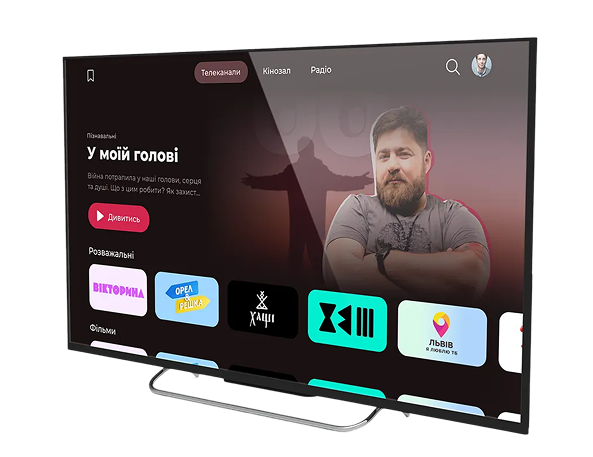
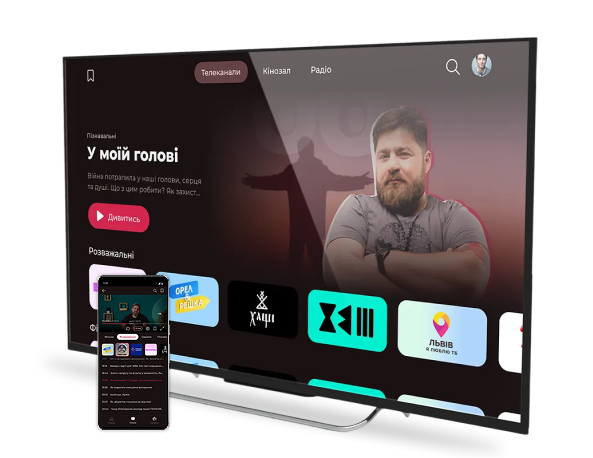
- Turn on your TV and connect it to the Internet.
- Open the Google Play Store.
- Enter «DyvyTV» in the search field.
- Select the app from the search results.
- Click Install.
- Once installation is complete, open the app and sign in to your account.
The DyvyTV app is available for most modern Smart TVs and mobile devices. Select your device and follow the instructions below.
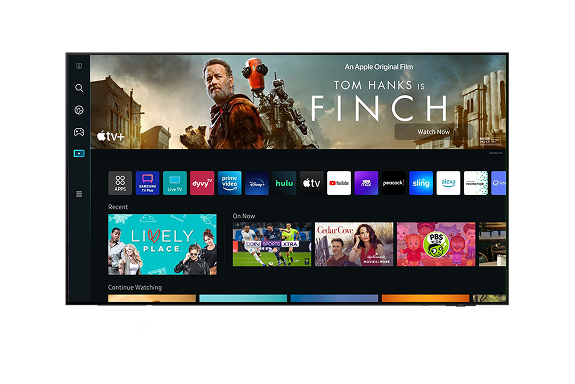
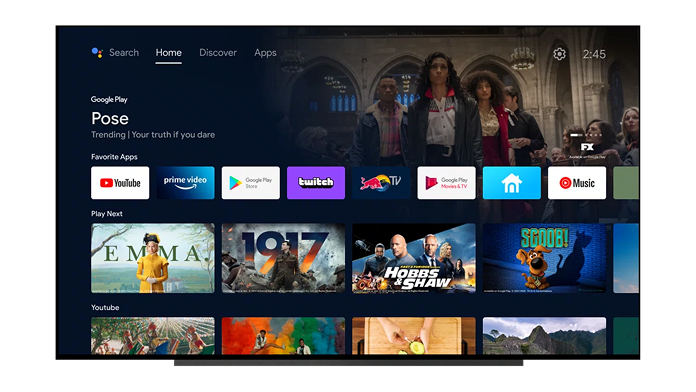
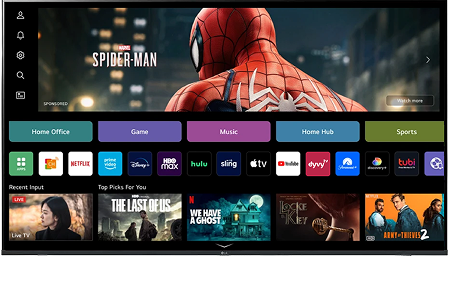
Supported Devices: Android TV/Google TV (Kivi, Sony, Philips, TCL, Xiaomi, and others), Samsung Smart TV (Tizen), LG Smart TV (webOS), Android smartphones and tablets
Soon: Iphone (IOS), Hisense (Vidaa).
Smart TV
Phones and Tablets